
Welcome! This quick guide will help you:
- Log into the FullStack Nerds Client Area
- Open your hosting service and access Webmin (your control panel)
- Create a new email address on your domain
- Access your mailbox (Webmail)
Before You Start
- Your FullStack Nerds Client Area login details (email + password)
- Your domain name (example: yourdomain.co.za)
Step 1: Log Into the FullStack Nerds Client Area
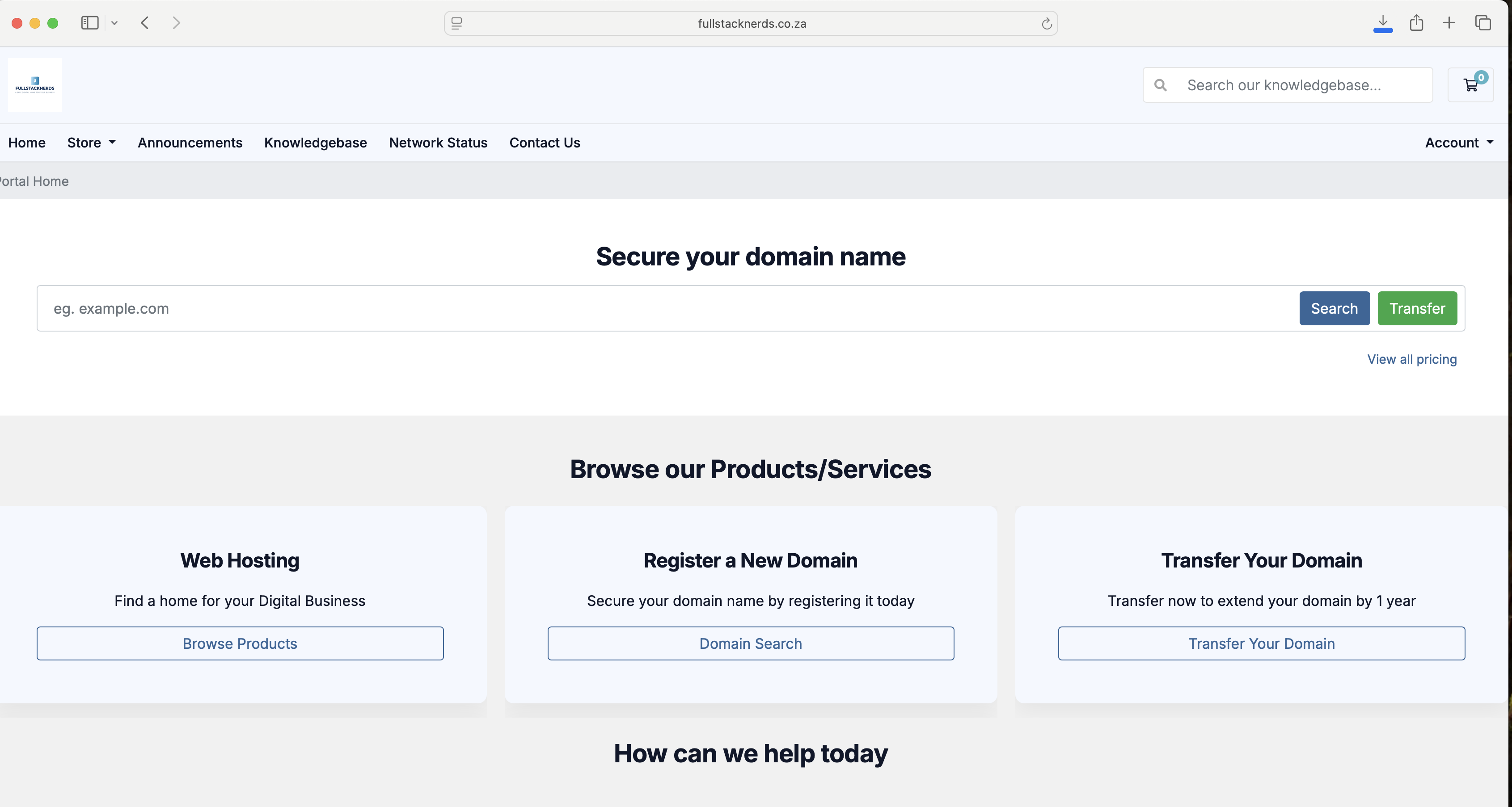
- Go to the FullStack Nerds website: www.fullstacknerds.co.za
- Go to Account, select for drop-down options (top right navigation).
- Select "Login"
- Enter your email address and password.
- Click Login.
Tip: Your dashboard is where you manage services, billing, and support tickets.
Screenshot placeholder:
 : Client Area Login Page
Step 2: Open Your Hosting Service
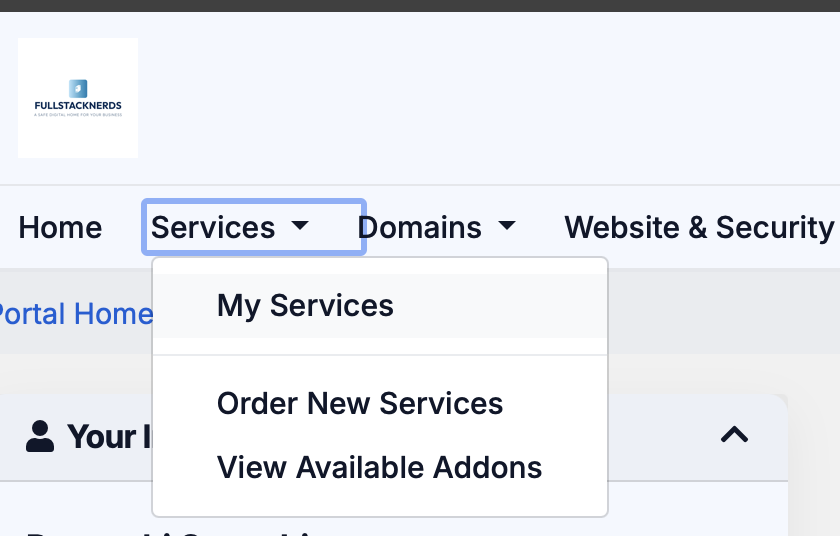
- From the dashboard, go to Client Area.
- Click Services >> My Services
- You’ll see your hosting package listed (e.g. Basic or Standard).
- Click your Domain Name (example: janecafe.co.za).
Scroll to the bottom, you will now see your Hosting Information panel with details like:
- Domain name
- Username
- Server name
- IP address
- Nameservers
- SSL Status ( Valid SSL Detected)
- Visit Website
- Click on *Login to Control Panel*
Screenshot placeholder:
 : My Products & Services (Hosting List)
Screenshot placeholder:
Step 3: Log Into Webmin (Your Control Panel)
Inside your Hosting Information panel:
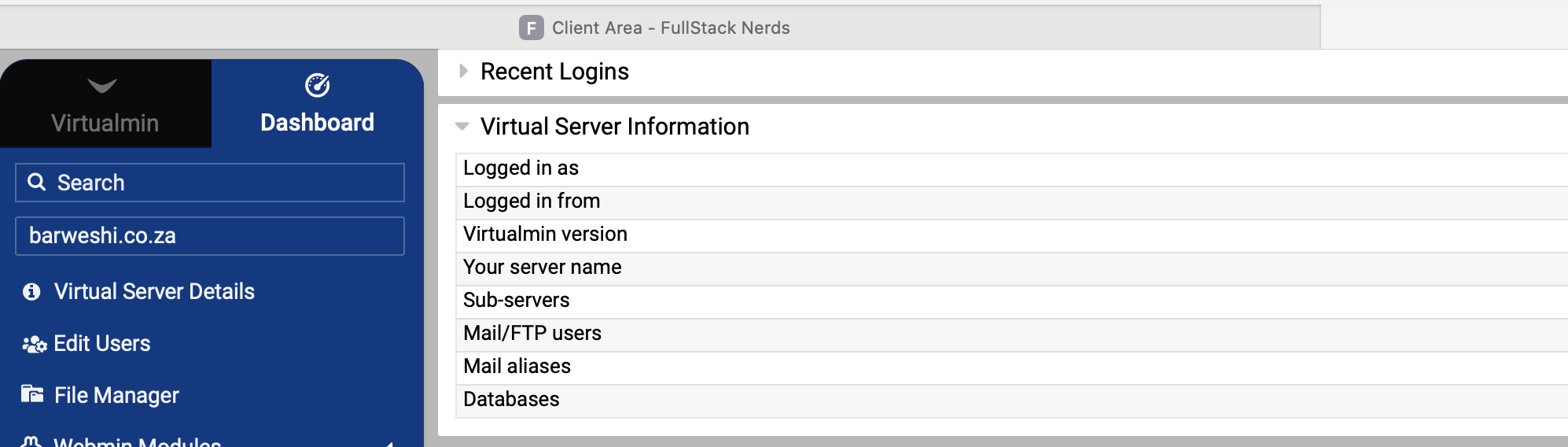
- Click Log in to Control Panel.
This opens Virtualmin / Webmin — the place where you manage:
- Email accounts
- Website files
- DNS settings
- Databases
Screenshot placeholder:
 “Log in to Control Panel” Button
Webmin Dashboard (Left Menu), Select "Edit Users"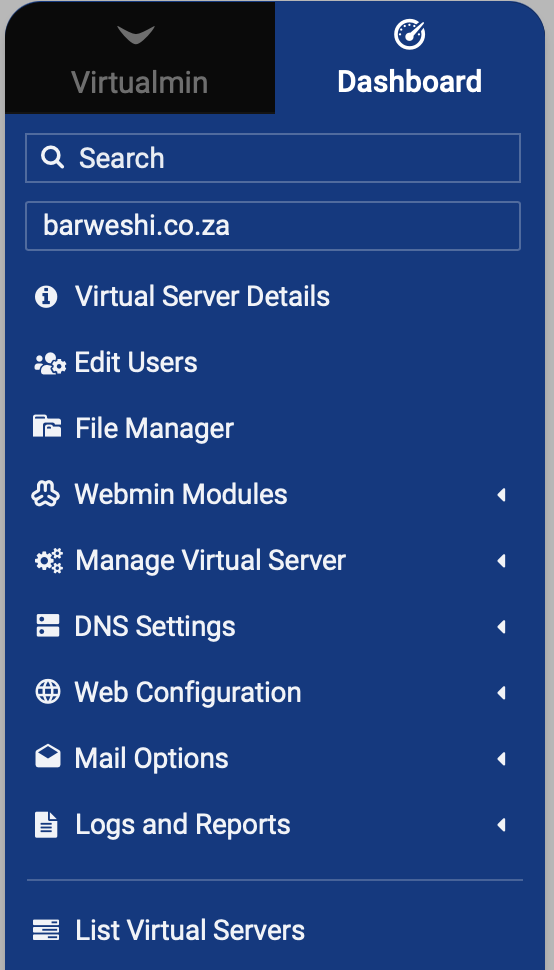
Screenshot placeholder:
Step 4: Create a New Email Address
4.1 Open “Edit Users”
- On the left menu, click Edit Users.
- You’ll see a list of existing email users (e.g. admin, info, name@domain).
Screenshot placeholder:
Edit Users List (Existing Email Accounts)
4.2 Click “Add User”
- Click Add user at the top.
Screenshot placeholder:

4.3 Enter the New Email Details
- Under Login username, type the email name you want (before the @).
Example:
sales
This becomes: sales@yourdomain.co.za
4.4 Set a Password
- Under Password, select Set to…
- Enter a strong password (12+ characters recommended).
- You can use the key icon to generate a secure password (if available).
Screenshot placeholder:
User Details (Login Username + Password) 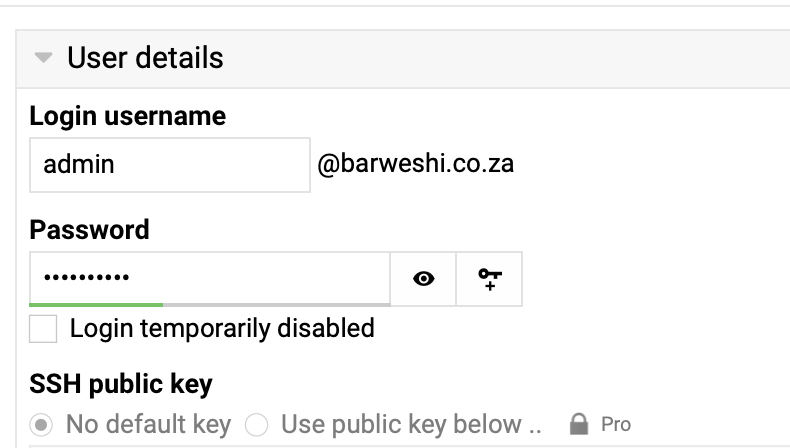
4.5 Check Email Settings (Recommended)
- Expand Email settings.
- Confirm email is enabled for the account.
- (Optional) Set a mailbox quota if needed.
4.6 Create the Email Account
- Click Create.
Your new email address is now live!
Step 5: Access the Mailbox (Webmail)
Option A: Open Mail via Webmin (Usermin)
- Go to Mail Options.
- Choose Mailboxes (if available).
- Select the user mailbox.
- Click Login to Usermin.
Option B: Log Into Webmail Directly
- Open your browser and go to:
https://yourdomain.co.za/webmail
- Log in with:
- Email address: full address (e.g. sales@yourdomain.co.za)
- Password: the password you created
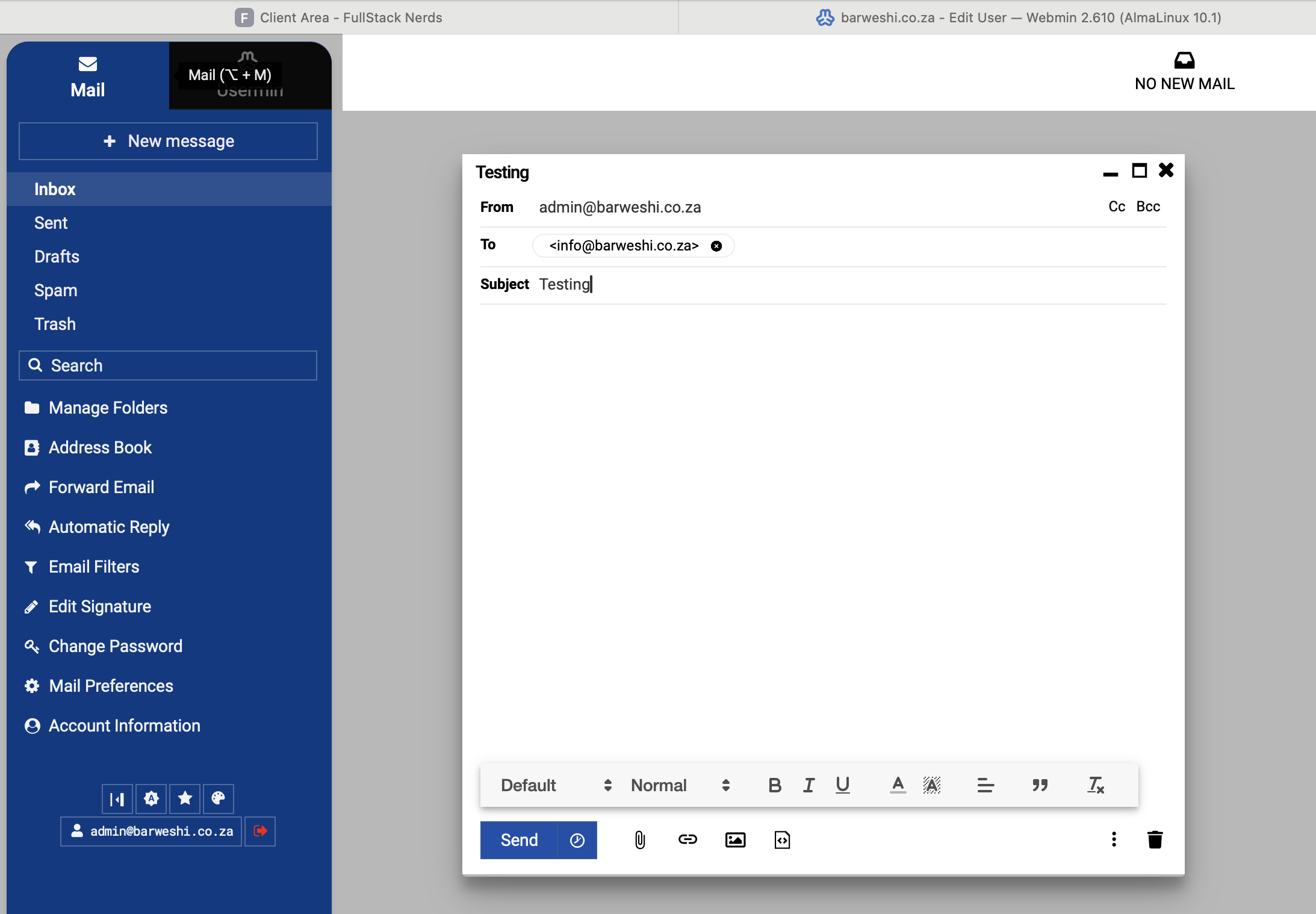
Screenshot placeholder:
Screenshot: Webmail Inbox (Compose / Inbox / Sent)
Important Notes
- If you see Valid SSL Detected, you’re secure and good to go.
- You can change a mailbox password anytime under Edit Users.
- You can temporarily disable an account if needed (useful for staff changes).
- Create only the email accounts you need (keeps things clean and secure).